Route optimization
Delivery route optimization for a food business's day
Delivery route optimization means deciding which driver takes which stops, and in what order, so nobody drives past a door twice. pickup.kitchen builds that plan from your drops, your drivers, and your kitchen's address. You can re-optimize as often as you like until a driver starts.
- Splits drops between drivers by area, city, or a zone you draw
- Orders each driver's stops by drive time
- Re-optimize free until the route starts
Free onboarding. Pay as you use. No monthly fee for ordering.
Real screens
See it in the app
Real screens from pickup.kitchen, the same ones you and your guests use.
1Delivery
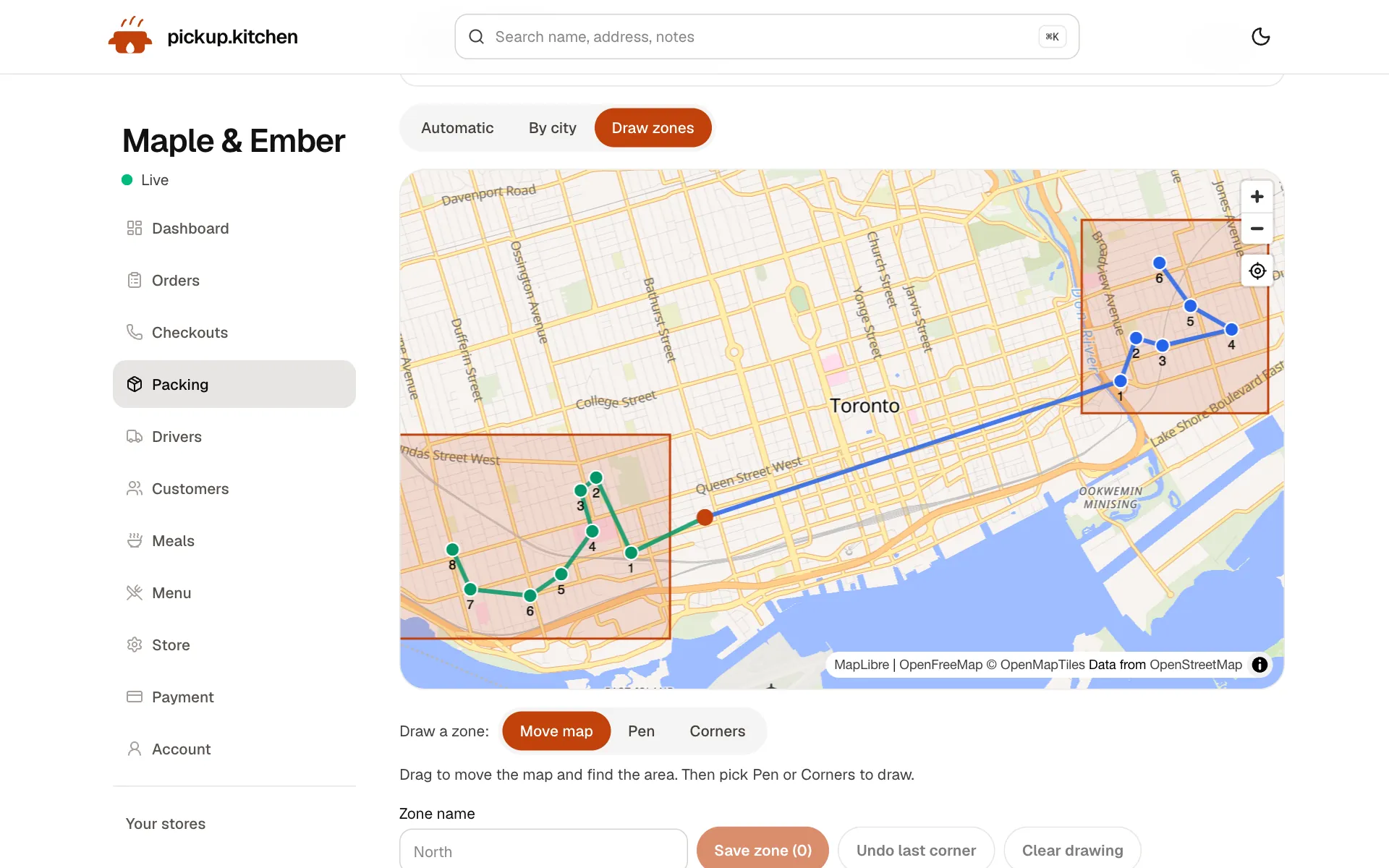
Your routes on a map
Stops come from your orders, or you add them by hand. Optimize puts them in order for the roads.
2Delivery
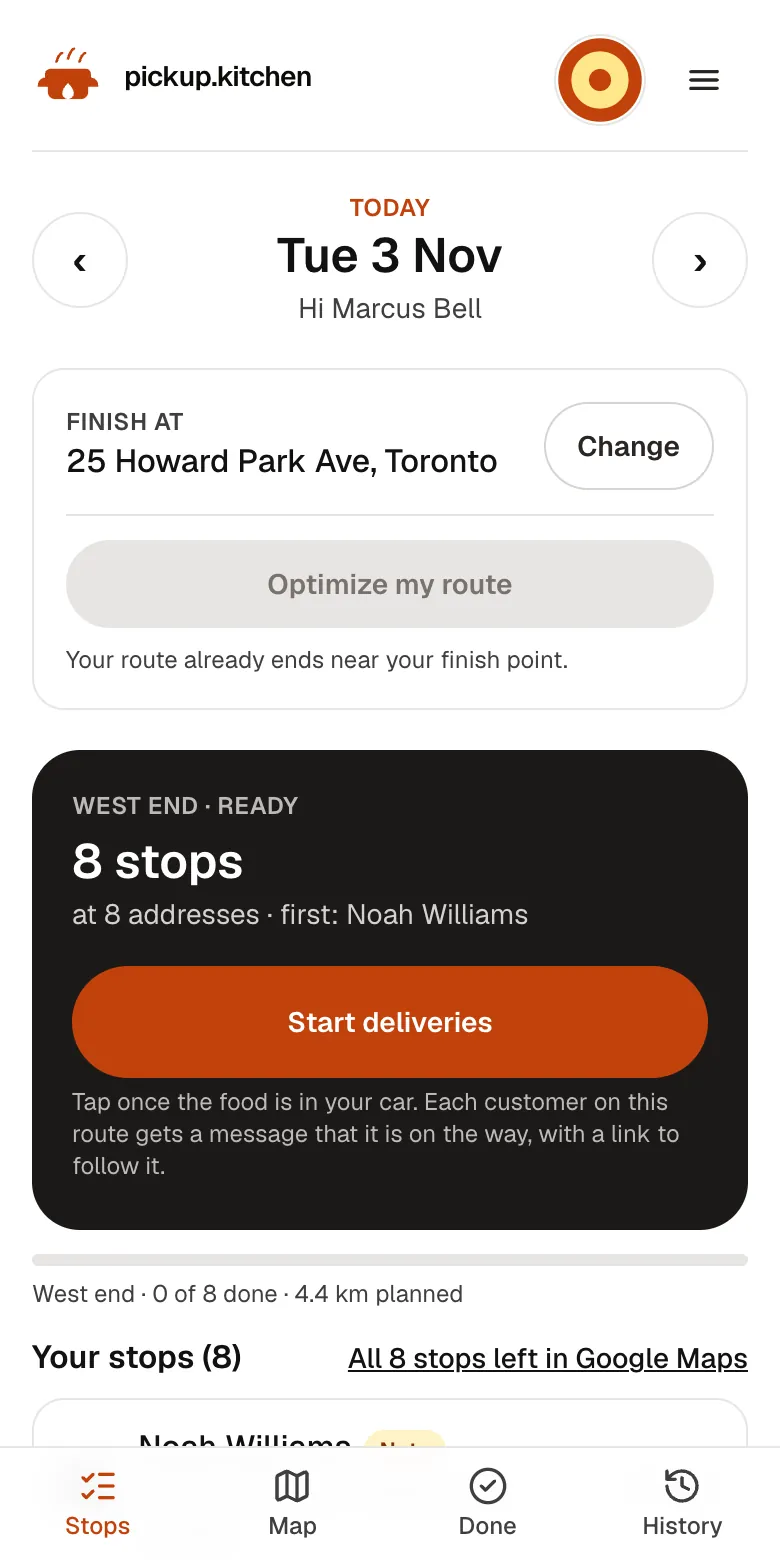
Send the route to your driver
One tap and the route opens on your driver's phone. They can start it the night before.
See how it works3Your driver
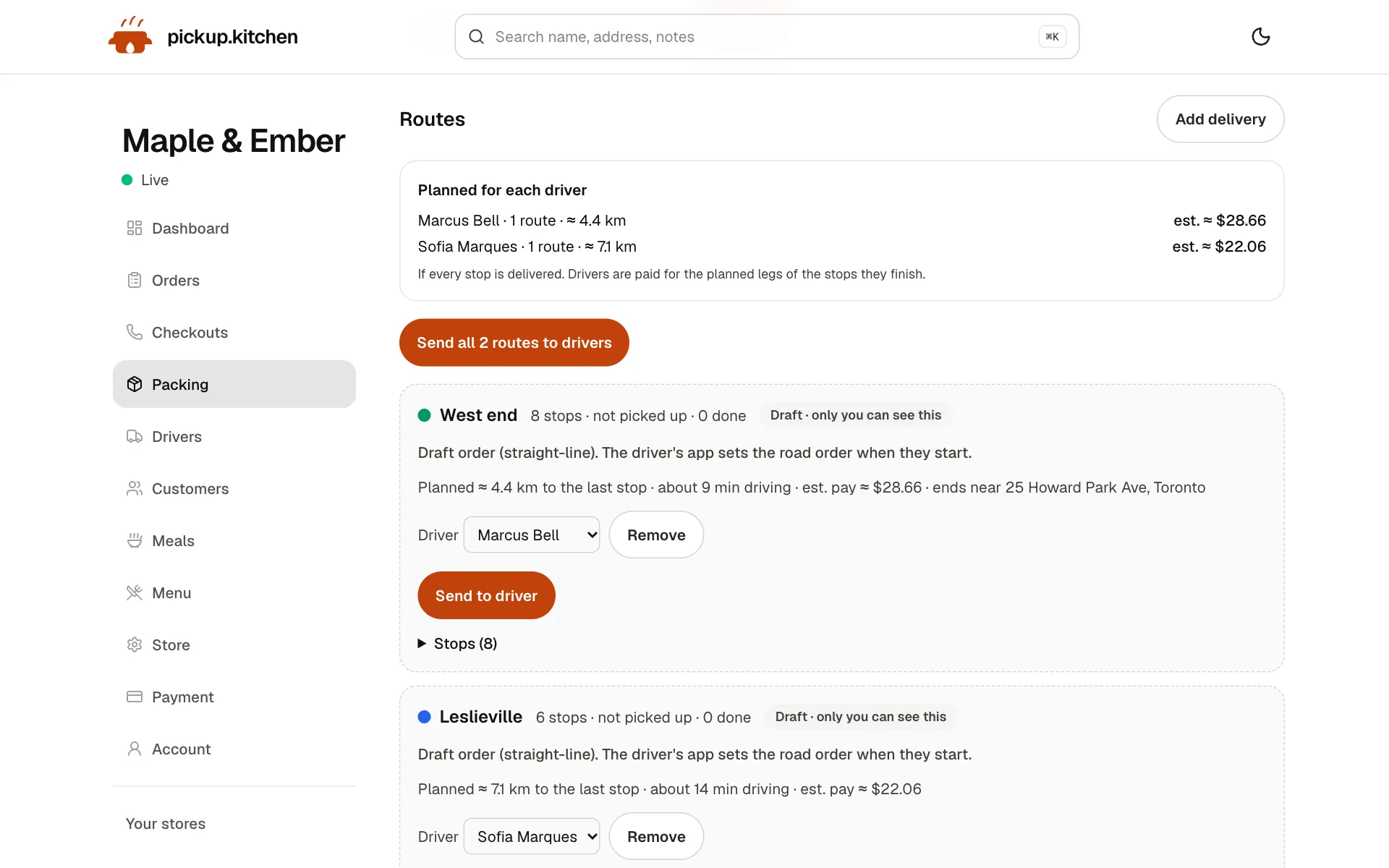
The route, in order
Your driver sees every stop numbered for the roads, with Navigate and the next stop always on top.
See how it works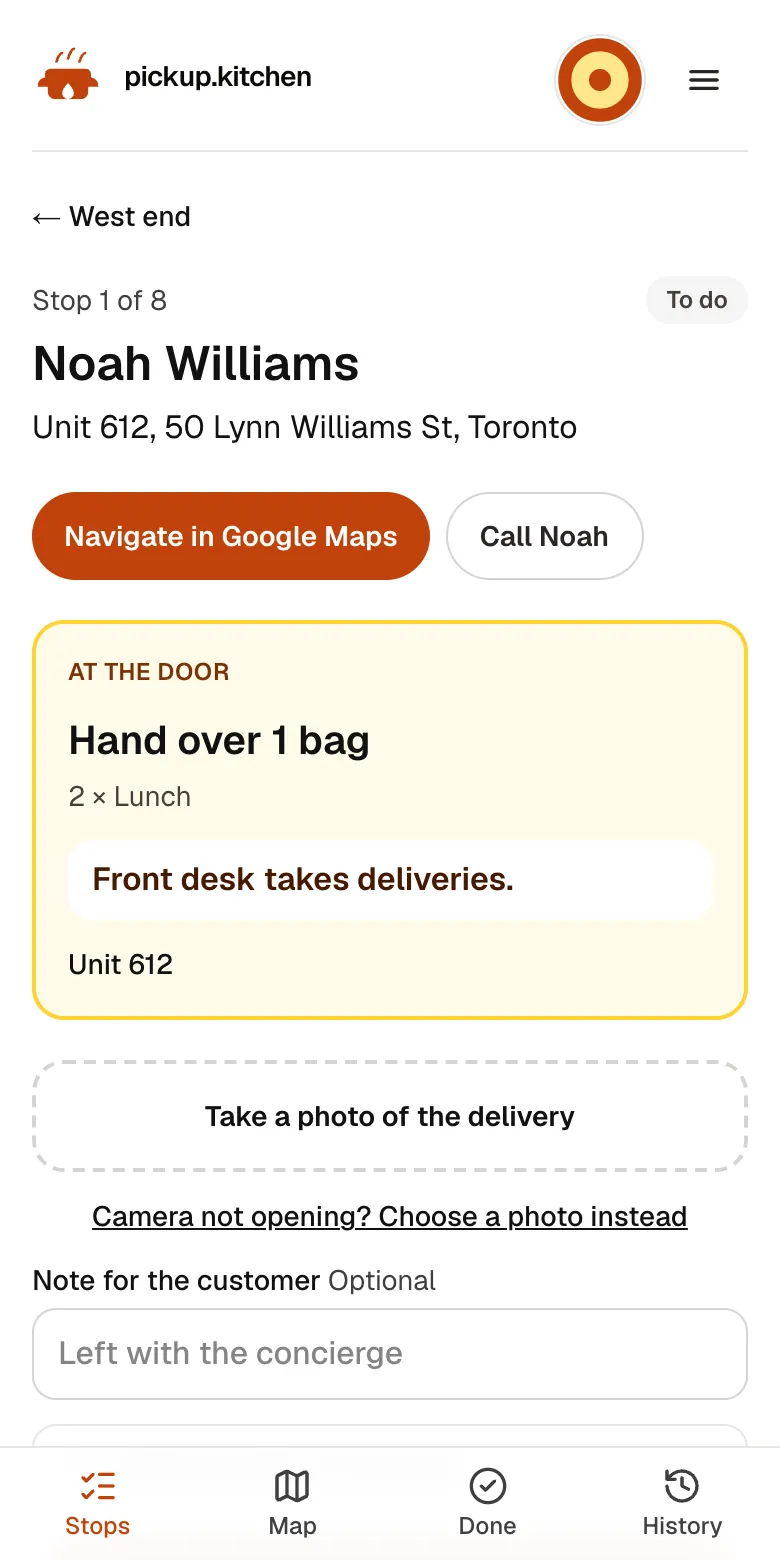
4Your driver
Each stop on one screen
The address, the door note, what to hand over and a Call button. Nothing to remember.
See how it works
In one login
What you get
- Three ways to splitAuto by direction, by city, or by zones you draw on the map.
- Same-door groupingStops at one address stay together and show as one visit.
- Draft and road orderA free instant draft for you, and a road-time order when the driver starts.
- EstimatesKilometres and driver pay are shown for every route before you send it.
- Re-optimizeAssign & optimize leftover drops, or plan again, until a route has started.
- Driver finish pointDrivers set where they end and optimize their own route.
Step one: every address gets a pin
Routes start with a point on the map for each drop. pickup.kitchen places addresses for you as orders arrive and when you add a delivery by hand. Two stops at the same door are kept together, so a driver drops both on one visit.
A few addresses will not match, like a new building or a typo. They wait in a list called Needs a pin. Tap Fix the address, pick the right suggestion or drop the pin yourself, and the stop joins the plan.
Step two: split the drops between drivers
With more than one driver, the first question is who takes what. You choose how the day is split.
- Auto: drops are sorted by direction around your kitchen and cut into one wedge per driver, with about the same number of stops each.
- By city: give each city a driver. Useful when you serve three towns and each driver knows theirs.
- Draw a zone: sketch an area on the map with a pen or by clicking corners, name it, and give it a default driver.
Step three: put each driver's stops in order
For each driver, pickup.kitchen reads the driving times between every pair of stops. It starts at your kitchen, heads to the nearest stop, and then keeps swapping stretches of the route while a swap shortens the drive.
That is a standard method, and it works well for a day's run of a few dozen stops. The map then draws each route in its own colour, with the kilometres and the pay estimate beside it.
If you know something the map does not, change a route's driver or remove a stop, then optimize again.
Optimize twice: draft first, roads when the driver starts
Your Optimize button is the draft. It orders stops by straight-line distance and estimates the drive from that. It is instant and free, so you can press it all day while orders still come in.
When a driver taps Start deliveries, the order is worked out again with real road times, once. The Plan page says which one you are looking at: “Draft order (straight-line). The driver's app sets the road order when they start.”
After you are happy, Send to driver is the final step. The driver gets a notification, and the board shows if you change the route afterwards.
Re-optimizing when the day changes
A late order, a cancelled stop, or a stop added by hand changes the plan. The page tells you: “Drops changed since this was ordered. Optimize again.”
Assign & optimize gives the drops that are on no route to one driver, in driving order from your kitchen. Routes already planned keep their drops. Plan again reshuffles routes that have not started.
Routes a driver has started are locked. That is deliberate, so a stop the driver is walking to does not move. You can still remove a stop, hand the route to another driver, or reopen a finished stop.
The driver can re-optimize too
Drivers who go home after the last delivery can add their address under Finish at, then tap Optimize my route. The stops are ordered so the route ends near home. If the order is already best, the app says so.
Pay counts the kilometres from the kitchen to the last delivery. The drive home is not paid, so choosing a finish point does not cost the driver anything.
Arrival times guests can trust
Once a route is moving, arrival times for later stops come from where the driver is now and the time left on each leg. Guests see a window, such as “between 4:30 and 5:15 p.m.”, that narrows as the driver gets closer. They are not given a single minute that traffic will break.
A stop moved to the end of the route is estimated again, instead of showing the old time.
A checklist for a clean plan
Before you tap Optimize, set where routes start and clear the Needs a pin list. Choose how to split the day: auto, by city, or by zone. Check that each driver is on the right route, then optimize.
Read the kilometre and pay estimates. If one route is far longer than the others, move some stops to another driver and optimize again.
What it does not do
This planner does not handle delivery time windows per stop, or vehicle capacity, such as a van that holds 12 trays. It plans one open route per driver, from your kitchen to the last stop, unless the driver sets a finish point.
For a food business with a few dozen drops a day, that covers the real problem: a clean split and a sensible order.
FAQ
Questions
What is delivery route optimization?
It is choosing which driver takes which stops and in what order, to cut driving time. In pickup.kitchen the split and the stop order are built for you from your drops and drivers.
Is there a route planner app for delivery drivers?
Yes. The driver app shows the planned stops in order and opens them in Google Maps. Drivers can also optimize their own route to end near home.
Can I change a route after I send it?
Yes, until the driver starts. The board shows that it changed since it was sent, and sending again updates the driver's phone.
How many stops can a route hold?
The planner works well for a few dozen stops per driver. Google Maps takes 10 stops at a time, so drivers tap again for the next batch.
Does it work as food delivery routing software for catering?
Yes, for drops by address. It does not plan around delivery time windows or van capacity, so add a note for the driver when a stop needs a set time.
What does route optimization cost?
It comes with ordering on pickup.kitchen, and stops from your orders cost nothing extra. Ordering has no monthly fee and costs 10% per order. The stand-alone driver app is 100 stops free, then CA$0.10 a stop.
Does pickup.kitchen provide the drivers?
No. You use your own drivers: your staff, family, or a driver you hire. pickup.kitchen gives them the app, with the route in order, each address and door note, Navigate, and a photo at every door, and gives you the dispatch side. We don't supply drivers or take a cut of their pay.
Keep reading
- ProductRestaurant delivery softwareRestaurant delivery software for your own drivers: plan drops, send routes to phones, follow every stop live, and pay drivers. Free with your orders.
- ProductDelivery driver appA delivery driver app for businesses that deliver: route on the phone, photo proof at the door, live tracking, dispatch. Free with pickup.kitchen orders.
- ProductProof of delivery appA proof of delivery app for food businesses: drivers take a photo at the door, you see it live, and guests get it by text or email. Free for your orders.
- CompareRoutific alternatives for food deliveryRoutific alternatives for food delivery: Routific's free 100 orders and $150 flat plan against 100 free stops then CA$0.10 a stop, and where Routific wins.
- Productpickup.kitchen pricing: 10% per order, no monthly feepickup.kitchen pricing: free onboarding, no monthly fee, 10% per order. Delivery tools come with ordering. The driver app on its own is pay as you use.
Free onboarding. Pay as you use.
Put your kitchen on pickup.kitchen
No monthly fee for ordering. Send us your menu and we set it up with you, then you pay as you use.