Kitchen display system
A kitchen display system for the cook, not the owner
A kitchen display system replaces the paper ticket with a screen the cook can read from across the pass. The pickup.kitchen kitchen screen shows every paid order as a ticket with a sound. The cook taps Preparing, then Completed, and the guest is told it is ready.
- Runs in a browser on a tablet, phone, or laptop
- New tickets chime and say “New order received”
- Completed tells the guest it is ready
Free onboarding. Pay as you use. No monthly fee for ordering.
Real screens
See it in the app
Real screens from pickup.kitchen, the same ones you and your guests use.
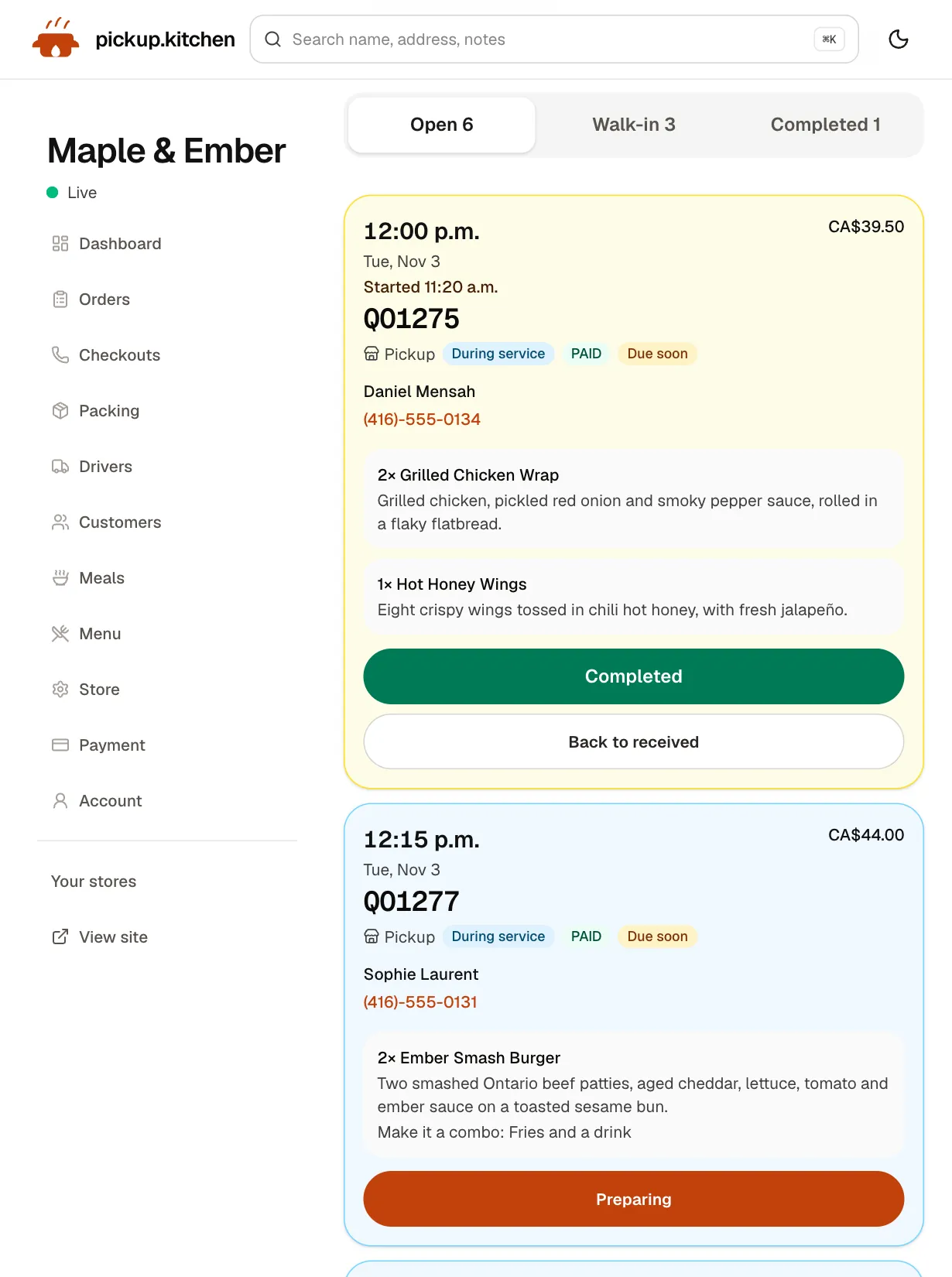
1Your kitchen
Tickets on the kitchen screen
Online orders, walk-ins and finished tickets in their own lanes, each with its QO number and the time it is due.
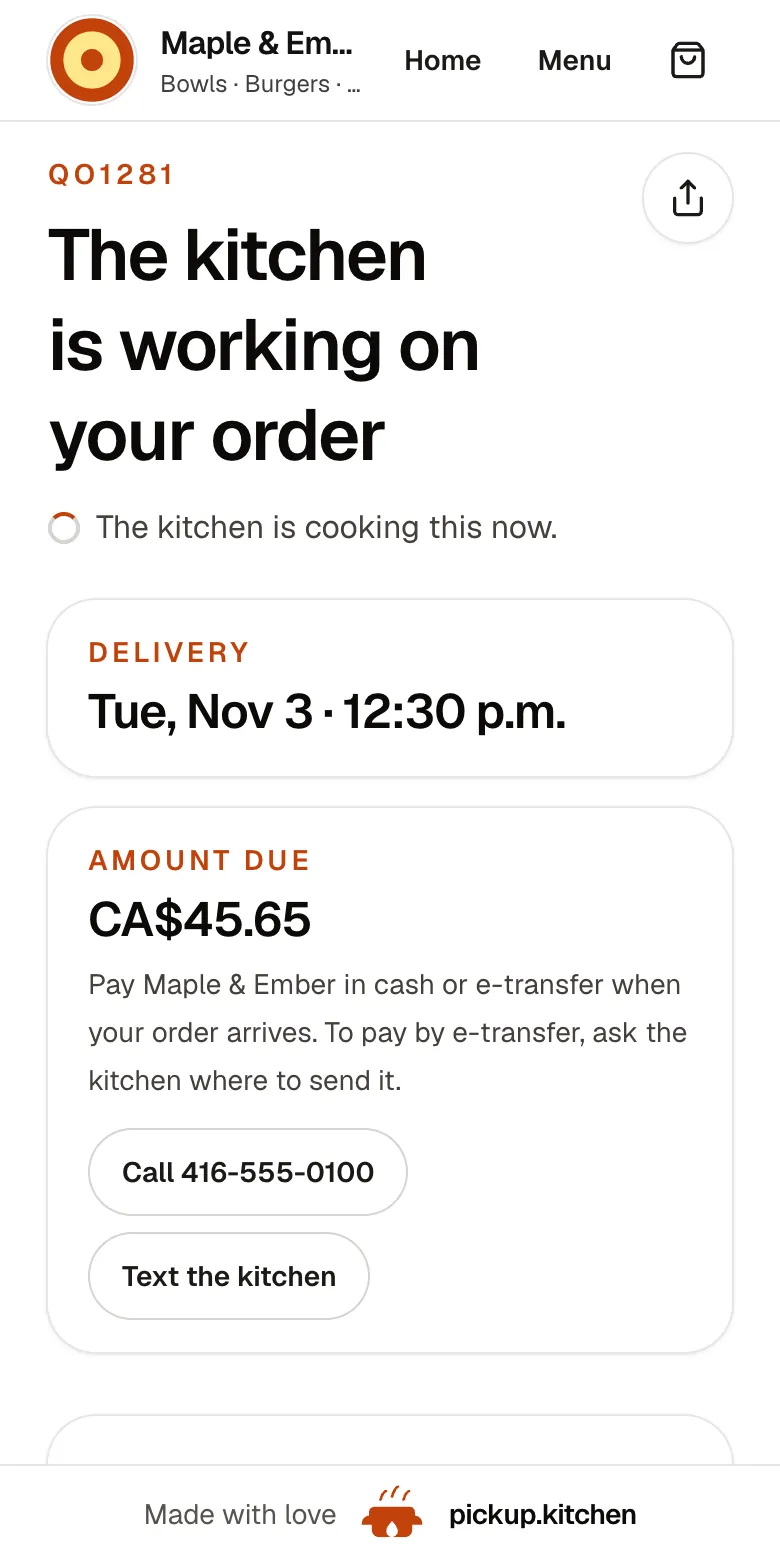
2Your guests
Every order gets a QO number
The guest sees their order number the moment they order, and the same number is on the kitchen's ticket.
See how it works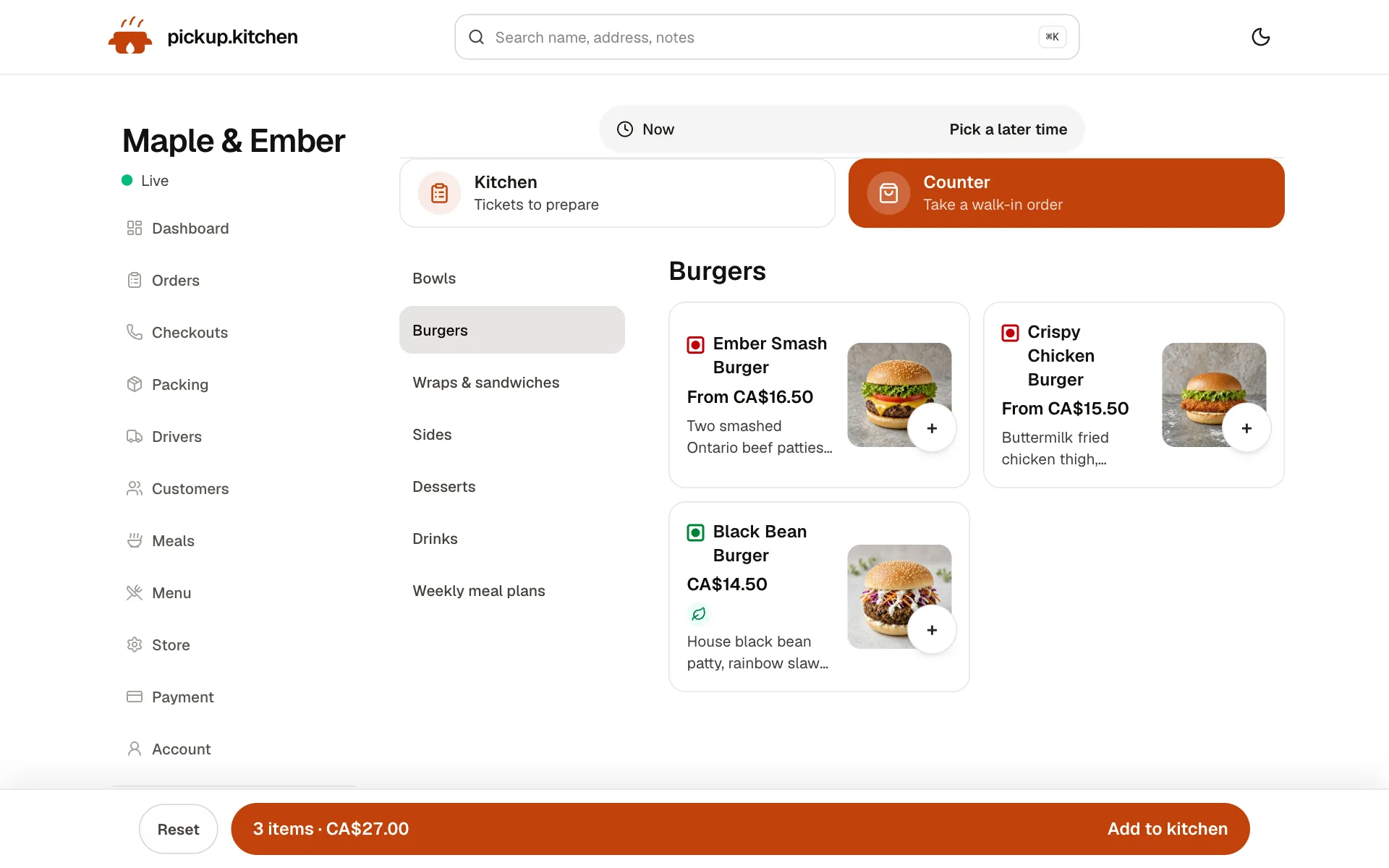
3Your counter
Ring up walk-ins at the counter
Tap the dishes, take cash or card, and the ticket joins the same board as the online orders.
See how it works
In one login
What you get
- Live ticketsPaid orders appear within seconds, and the board refreshes every five seconds.
- Sound and voiceA chime and “New order received” for each new ticket.
- Phone alertsTurn on notifications so a locked phone buzzes for new orders.
- Preparing and CompletedTwo taps move a ticket, and one tap undoes a mistake.
- Due soon and lateAmber within 30 minutes of the time, red when late.
- PIN sign-inCooks use a kitchen PIN. The device stays signed in.
What a kitchen display system does
A kitchen display system, or KDS, shows the kitchen what to cook and in what order. Orders come from your online site and from the counter. Paper tickets get lost, curl in the heat, and print late. A screen does not.
The kitchen screen at pickup.kitchen opens on any device with a browser. The cook signs in with a PIN you set, not with your owner password, and the device stays signed in.
What is on a ticket
Each ticket is built for a glance during the rush.
- The pickup or delivery time, large, with the order number below it.
- A pickup or delivery icon and a paid chip such as Paid, Cash, or Card.
- The guest's name, a tap-to-call phone number, and the address on delivery orders.
- Each item as quantity and name, with options underneath, like “Size: Large · Add: extra feta”.
- A highlighted Notes box for the guest's request. “No onions, allergy” is hard to miss.
Three lanes: Open, Walk-in, Completed
Online orders sit in Open. Orders typed in at your counter sit in Walk-in, so a phone order does not get mixed in with a delivery. Finished tickets move to Completed.
The cook taps Preparing when they start. The ticket turns yellow so a second cook can see it is taken. They tap Completed when it is done, and the ticket turns green.
Tap Picked up, or Delivered for a delivery order, when it leaves the pass. A wrong tap is fixable: Back to preparing and Back to received are one button away.
Late is red, due soon is amber
A ticket turns amber when its time is within 30 minutes, and red once it is late. A sky-blue tint marks online orders placed during service, so you can see what arrived mid-rush.
Removed and cancelled tickets are not lost. Removed, Cancelled, and Unpaid checkouts each have their own section for the day.
Sound and phone alerts
Tap the sound button once and every new ticket plays a chime and says “New order received”. With several at once it says how many.
You can also turn on alerts so a locked phone buzzes when an order lands. If you step out for a delivery, you still hear about the next one.
The board refreshes itself every five seconds. Nobody has to press reload.
The guest hears when it is ready
Completed is the signal that tells the guest. They get “Ready for pickup” or, for delivery, “On the way”, on their order page and in an email. If they agreed to texts at checkout, they get a text too.
If you cancel or skip a ticket, the guest is told the order won't be made. If a card was charged, the message says it will be refunded.
A rush, ticket by ticket
It is 6:05 p.m. on a Friday. Fourteen tickets are open. Two are amber, because their pickup time is within 30 minutes. One is red: Nia R. ordered a margherita and a Caesar for 5:45, and it is not out yet.
The cook starts with the red ticket and taps Preparing. It turns yellow, so the second cook sees it is taken. A new order arrives, the chime plays, and the screen says “New order received”. Nobody looks up from the oven to check.
The Caesar goes out first. The cook taps Completed, then Picked up when Nia collects it. The ticket moves down to Completed, and the guest has already been told it is ready.
Set up the screen in ten minutes
Set a kitchen PIN in your store settings and give it to the people who cook. Open the kitchen link on the tablet or laptop you want to use. Enter the PIN, then tap the sound button once so the chime can play.
Add the page to the Home Screen so it opens full screen with its own icon. The device stays signed in, so nobody types the PIN every morning. Place a test order from your own site to see the ticket arrive.
Pair it with a counter and sold-out days
A kitchen display system works best when everything arrives on one screen. A walk-in order typed at the counter goes straight to Walk-in, on the same menu. See the POS page for how staff take those orders.
Close a day when you run out, or let a slot close when it is full, so the screen only holds orders you can make. The online ordering page covers slots and cutoffs.
What it does not do
The board is one list for the whole kitchen. It does not split tickets by station, such as grill, fryer, and cold, and it does not connect to a bump bar. If your kitchen needs a screen at each station, ask before you switch.
FAQ
Questions
What is a kitchen display system?
A screen in the kitchen that shows incoming orders as tickets, in place of printed slips. Cooks mark tickets started and finished, and the front of house sees the status.
Do I need special hardware for a KDS?
No. The kitchen screen runs in a browser on a tablet, phone, or laptop. You choose the screen.
What is the best kitchen display system for a restaurant?
The one your cooks will keep looking at. Check that orders arrive with a sound, tickets show notes and options clearly, and counter and online orders land on the same screen.
Does a restaurant POS system with kitchen display come included?
Yes. The counter takes walk-in and phone orders on the same menu and sends them to the same kitchen screen. See the POS page.
Can the guest see the status of their order?
Yes. They get an order page and an email when the order is confirmed, then another when it is ready for pickup or on the way.
What does the kitchen screen cost?
It is included with ordering. There is no monthly fee and no per-screen charge. You pay 10% per order.
Keep reading
- ProductOnline ordering system for restaurantsAn online ordering system for restaurants: your own site at yourname.pickup.kitchen, time slots that close when full, and a kitchen screen. 10% per order.
- ProductRestaurant POS systemsRestaurant POS systems differ. This one takes walk-in and phone orders on your online menu and sends them to your kitchen screen. No hardware to buy.
- ProductKitchen management softwareKitchen management software that only promises what you can cook: slot limits, sold-out days, dish stock and prep lists for weekly plans. 10% per order.
- ProductRestaurant management systemA restaurant management system for takeout and delivery: every part in one login, from the ordering site to the kitchen, counter, customers and drivers.
- Productpickup.kitchen pricing: 10% per order, no monthly feepickup.kitchen pricing: free onboarding, no monthly fee, 10% per order. Delivery tools come with ordering. The driver app on its own is pay as you use.
Free onboarding. Pay as you use.
Put your kitchen on pickup.kitchen
No monthly fee for ordering. Send us your menu and we set it up with you, then you pay as you use.