Counter and POS
A restaurant POS for walk-in and phone orders
Restaurant POS systems vary a lot, so here is what this one is. It is a counter for walk-in and phone orders on the same menu as your online ordering. Each order goes to the same kitchen screen, and staff mark it paid by cash or card. It runs in a browser on devices you already own.
- Same menu, same stock, same kitchen screen as online orders
- Walk-in and phone orders in a few taps
- Runs in a browser. No hardware to buy.
Free onboarding. Pay as you use. No monthly fee for ordering.
Real screens
See it in the app
Real screens from pickup.kitchen, the same ones you and your guests use.
1Your counter
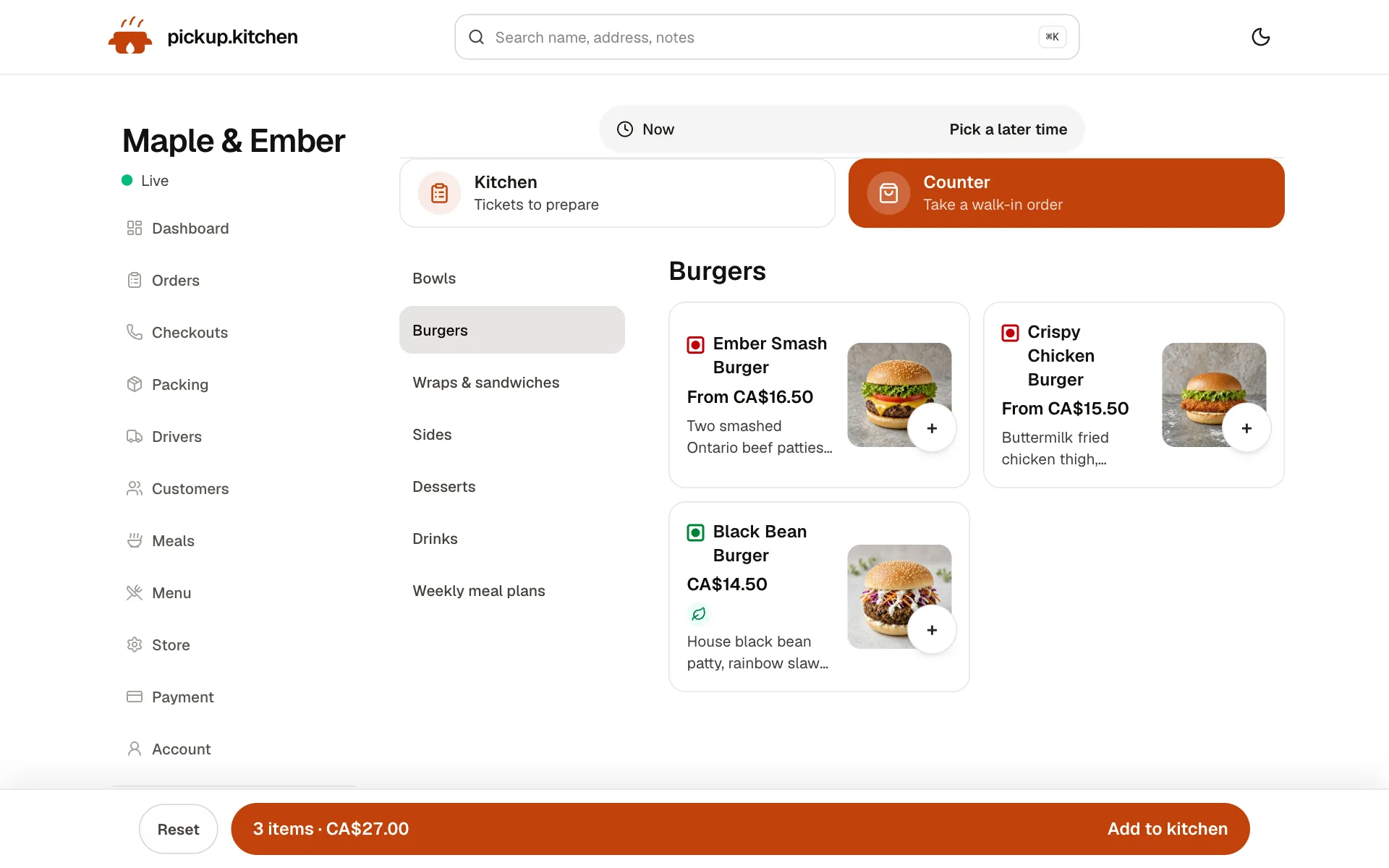
Ring up walk-ins at the counter
Tap the dishes, take cash or card, and the ticket joins the same board as the online orders.
2Your kitchen
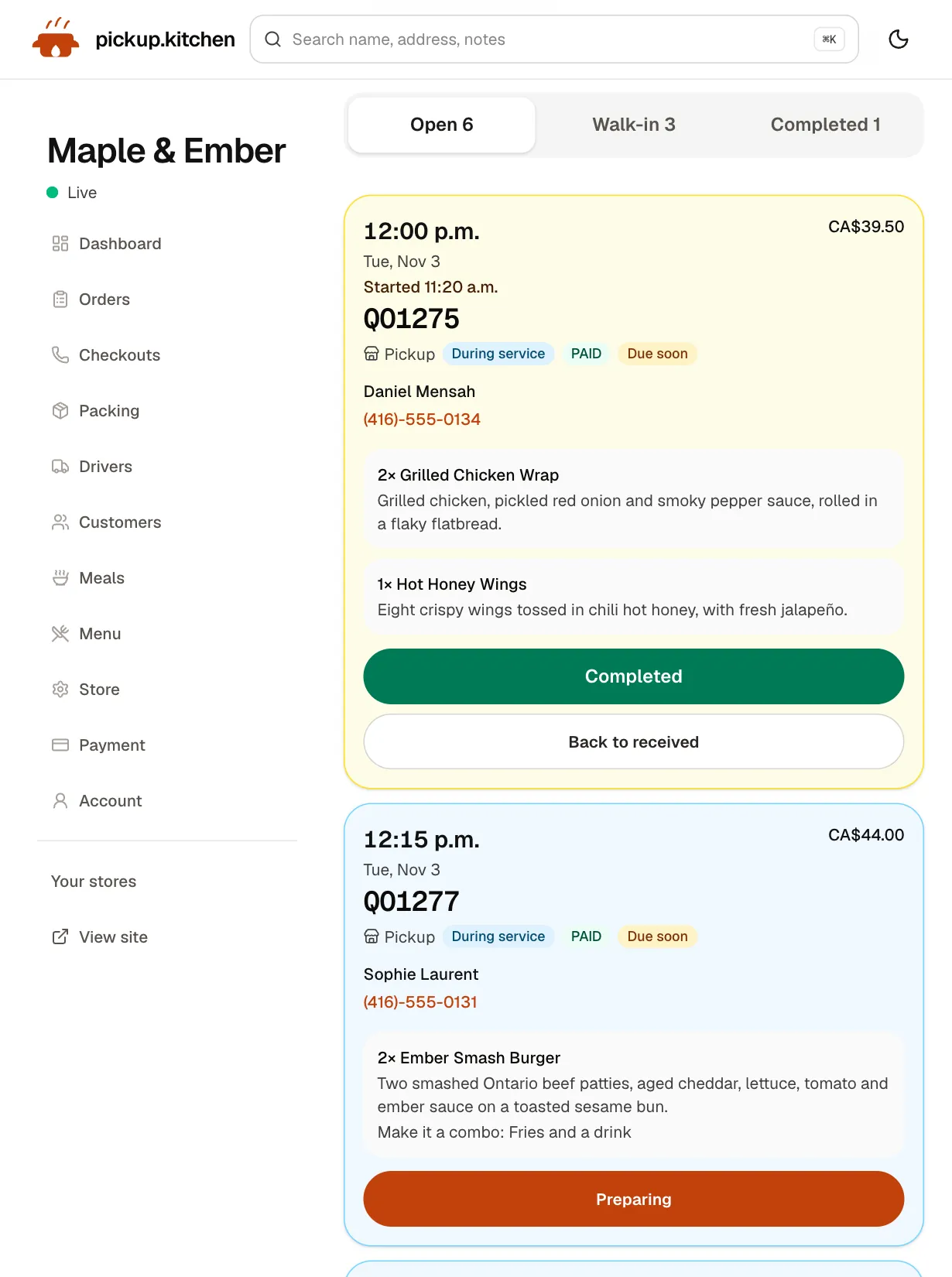
Tickets on the kitchen screen
Online orders, walk-ins and finished tickets in their own lanes, each with its QO number and the time it is due.
See how it works3Your guests
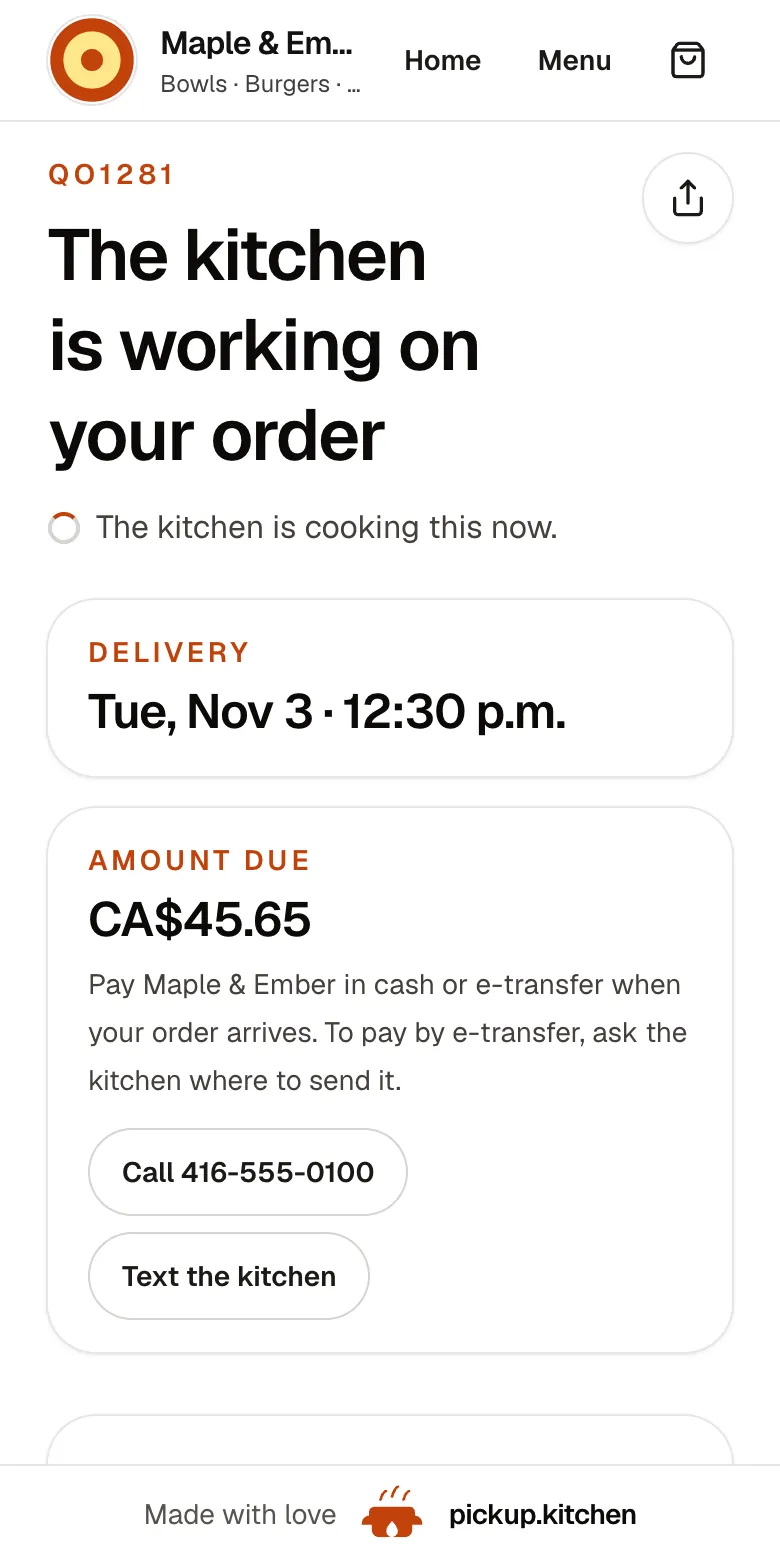
Every order gets a QO number
The guest sees their order number the moment they order, and the same number is on the kitchen's ticket.
See how it works
In one login
What you get
- Same menuDishes, options, prices, and stock shared with your online ordering.
- Item notesA note on any item, shown on the kitchen ticket.
- Cash or cardMark each order paid by cash or card before it goes to the kitchen.
- Phone and delivery ordersPick a pickup or delivery time, and an address for delivery.
- Walk-in laneCounter orders show on the kitchen screen in their own lane.
- 15-minute undoStaff can cancel a counter order entered by mistake.
What the counter is
On the kitchen app there are two buttons: Kitchen, for tickets to prepare, and Counter, for taking a walk-in order. Staff sign in with the kitchen PIN, not with your owner login.
The counter shows your menu, with the same dishes, options, and prices a guest sees online. Change a price once and it changes in both places.
Taking a walk-in order
Tap the dishes. Add a note to any item, such as “no cilantro”. Add the guest's name, which prints on the ticket. A phone number is optional, so tick No phone number when someone just wants a coffee and a pastry.
Choose how they paid, Cash or Card, and tap Send to kitchen. The order lands in the Walk-in lane on the kitchen screen at once, next to your online orders but not mixed in with them.
Taking a phone order
A phone order needs a time. Pick the pickup time on the counter, or choose delivery, enter the address, and pick a delivery slot. The ticket carries that time, so the cook sees it in the right order.
Orders you enter yourself are not blocked by the order cutoff. If Marcus K. calls at 8:30 p.m. and your online cutoff was 8, you can still take it.
A lunch rush at the counter
It is 12:20 and the line is five deep. Staff tap two bowls and a drink, type “Omar” for the name, tick No phone number, mark it Cash, and send it. The ticket appears in Walk-in on the kitchen screen before the next guest steps up.
A phone rings. It is Liam M., who wants four sandwiches at 1:15. Staff pick the pickup time, enter the order and send it. The cook sees it as a 1:15 ticket and starts the bowls first.
Fixing a mistake
Staff who log an order by mistake can undo it within 15 minutes. Undoing cancels the order, it is not billed, and it stays on record. After 15 minutes, contact us to change it.
Kitchen and counter, one app
Cooks use the Kitchen button, and counter staff use the Counter button. Both open with the same PIN, and you can flip between them in one tap.
You see the same two screens from your owner login, so you can step in and take an order on a busy night.
One menu, one stock, one list of orders
A POS that is separate from online ordering means two menus, two stock counts, and two places to look for yesterday's orders. Here the counter shows “4 left” or “Sold out” on any dish with tracked stock, the same stock your online guests see. At zero, nobody can order it.
Counter orders appear in the same orders list as online ones. You can search the list by order number or customer, and filter it by status. Your dashboard sales summary reads from the same list.
What it costs
Guests who order online by card pay the 10% at checkout. For orders you enter yourself, you pay the 10%, charged weekly to the card you save. A saved card is needed to take counter orders.
There is no monthly fee and no per-terminal charge. The pricing page has the full picture.
Set up the counter in ten minutes
Set the kitchen PIN. Open the kitchen app on the tablet at your till and sign in. Save a card on your account, because counter orders are billed weekly and the counter will ask for one first.
Enter a test order, watch it land on the kitchen screen, and undo it. Staff now know the whole flow.
What it does not include
Be sure about the edges. The counter records how an order was paid. It does not include a card reader, a receipt printer, or a cash drawer connection. If you take card at the counter, use the terminal you already have, then mark the order Card.
It is built for orders that leave the building: walk-in pickup, phone orders, and delivery. It does not handle tables, tabs, or splitting a bill.
Questions to ask any restaurant POS vendor
A POS decision is a multi-year one, so ask these first.
- Do online orders and counter orders share one menu and one kitchen screen?
- Which hardware must I buy, and what happens when it breaks?
- Is there a monthly fee per terminal, per location, or per feature?
- What do I pay when I take an order: a flat rate or a percentage?
- Can staff use their own login or PIN, and can they see my sales?
FAQ
Questions
What is the best POS system for a restaurant?
The one that fits how you sell. If most of your orders are takeout, phone, and delivery, pick one that puts counter and online orders on one menu and one kitchen screen. Avoid a monthly fee per terminal.
Is there a restaurant POS with online ordering built in?
Yes. pickup.kitchen has online ordering, a kitchen screen, and a counter on one menu. See the online ordering page for the guest side.
Does it take card payments at the counter?
It records that the order was paid by cash or card. It does not include a card reader, so take card on the terminal you already use.
Is this a restaurant POS system in Canada?
Yes. pickup.kitchen is based in Toronto and the counter works for kitchens in Canada and the United States.
Do I need special hardware?
No. The counter runs in a browser on a tablet, phone, or laptop.
Can I use it for a restaurant with a few tables?
It does not handle table service, tabs, or split bills. It is built for walk-in pickup, phone orders, and delivery.
Keep reading
- ProductKitchen display system for restaurantsA kitchen display system that runs in the browser: tickets arrive with a sound, cooks tap Preparing and Completed, and guests hear when it is ready.
- ProductOnline ordering system for restaurantsAn online ordering system for restaurants: your own site at yourname.pickup.kitchen, time slots that close when full, and a kitchen screen. 10% per order.
- ProductRestaurant management systemA restaurant management system for takeout and delivery: every part in one login, from the ordering site to the kitchen, counter, customers and drivers.
- Productpickup.kitchen pricing: 10% per order, no monthly feepickup.kitchen pricing: free onboarding, no monthly fee, 10% per order. Delivery tools come with ordering. The driver app on its own is pay as you use.
- CompareToast alternative for takeout and delivery kitchensA Toast alternative for takeout, delivery and meal-plan kitchens: Toast's Canadian POS plans against 10% per order, no hardware, and where Toast wins.
Free onboarding. Pay as you use.
Put your kitchen on pickup.kitchen
No monthly fee for ordering. Send us your menu and we set it up with you, then you pay as you use.